lab04
EECS 498 APSD: Database Tutorial
Introduction
In this lab, you’ll learn the fundamentals of working with an SQLite database in a TypeScript project using Kysely, a type-safe SQL query builder. These pragmatics will directly apply to your course projects, especially as the system becomes more complex and needs to manage persistent data.
Setup
If you haven’t already, make a clone of your project group repository released with project 2. Go through the setup instructions in the project spec, including installing pnpm (we’re switching to a new package manager away from npm) and then installing project dependencies with pnpm install.
Background: What is a Database?
A database is a system for storing, organizing, and retrieving structured data. While you could just store and retrieve serialized data with plain old files, it’s quite cumbersome. On the other hand, modern database systems are reliable, highly efficient, and provide clean separation of concerns in an overall system. Many real-world applications rely on persistent data (e.g., user accounts, game scores, settings, etc.), and databases are ubiquitous in software development.
Relational Databases
The most common type of database is a relational database, which organizes data into tables (formally called “relations”). Each table has several columns that define what kind of data is stored and rows that hold individual records. Loosely, you can think of these like the properties in an interface and the individual objects that have data members following that shape.
SQLite: A Lightweight Database
At least for now, we’ll use SQLite, a lightweight relational database that stores everything in a single file (database.sqlite). This is quite a bit simpler to set up compared to databases like PostgreSQL or MySQL, which require more complex configuration and need to run as a separate server process. It’s great for our purposes, and generally speaking the concepts you learn with SQLite will transfer to other relational databases as well. (SQLite does have a few quirks, though - if you’re running into anything weird, it might be worth it to check: https://sqlite.org/quirks.html.)
SQL (Structured Query Language)
SQL is the standard language for interacting with relational databases. Here’s what basic SQL looks like:
-- Create a table
CREATE TABLE players (
  player_id VARCHAR(255) PRIMARY KEY,
  display_name VARCHAR(255) NOT NULL
);

-- Insert a row
INSERT INTO players (player_id, display_name) VALUES ('alice123', 'Alice');

-- Query data
SELECT * FROM players WHERE player_id = 'alice123';

-- Update a row
UPDATE players SET display_name = 'Alicia' WHERE player_id = 'alice123';

-- Delete a row
DELETE FROM players WHERE player_id = 'alice123';
SQL is actually a great example of a few things we’ve discussed in class:
- A declarative language: You specify what you want (not what steps to take to get there). The rest is left to the database.
- A highly expressive abstraction built through composition of a few simple, orthogonal concepts. The four fundamental insert, select, update, and delete operations, combined with various clauses to filter, sort, and join data, are enough to express nearly any data manipulation task.
However, there are a few reasons we do not want to write raw SQL in our code. Because an SQL query is just a string, we have:
- No Compile Checks: Typos or malformed requests aren’t detected until runtime errors occur.
- Security Concerns: A query directly mixes data and instructions - a major faux pas for security, and attackers can exploit this (e.g. via “SQL injection”) if we slip up even a bit in validation.
- Boilerplate: Mapping between SQL and your programmed data types requires repetitive code.
For this reason, we generally add an abstraction layer on top of SQL. For our projects, we’ll use Kysely, a modern TypeScript query builder.
Type-Safe Query Builders
A query builder like Kysely lets you write database queries in TypeScript code that is based on the same underlying abstractions as SQL and provides the same expressive power, but lower complexity and much better feedback if we compose something in the wrong way. We’ll get type checking, autocompletion, and certain security guarantees for free.
We could also say that Kysely provides a “domain-specific language (DSL)” embedded within TypeScript. Similar to the way testing frameworks use a DSL for expressing expectations and assertions, Kysely provides a DSL for expressing database queries.
Finally - the big win is that tools like Kysely mitigate the structural coupling between our program code and the database schema. Without tooling, this is a high-distance, high-complexity, and potentially high-volatility relationship. As the database evolves, we might rename tables, add or remove columns, change types of data, etc. The same goes for interfaces, types, and names in our program code. Checking these and keeping them in sync manually is error-prone and tedious.
Instead, we’ll use an automated process to generate TypeScript types based on our database schema. These are imported into our database layer, where the regular type checker verifies that they indeed line up with our application code. Whenever we change the database schema, we just regenerate the types and get compile-time errors in our code if we’ve broken something. This makes it much safer and easier to evolve both the database and application code over time.
Background: The Database Layer
The database layer is a set of functions or abstractions that encapsulate direct interaction with the database. Take a look at the existing database layer in project 2:
packages/database/
├── kysely.config.ts        # Configuration for Kysely CLI tools and migrations
├── .kysely.codegenrc.json  # Configuration for auto-generating types
├── database.sqlite         # The actual database storage file
├── src/
│   ├── database.ts         # Database connection and shared utilities
│   ├── mock_database.ts    # A "mock" in-memory database for testing
│   ├── players.ts          # Database layer functions for players
│   ├── players.test.ts     # Tests for DB player functions
│   ├── schema.d.ts         # Auto-generated types based on database schema (DO NOT EDIT)
│   └── migrations/
│       └── 001_template.ts  # Migration files that evolve the database schema over time
Open players.ts in the packages/database/src folder to see examples of database layer functions. Don’t worry about the exact details for now, but observe that each function:
- Has a clear, descriptive name (
getPlayerById,insertPlayer, etc.) - Encapsulates the details of how a database query is built and executed
- Returns structurally typed data that the rest of your application can understand
Part 1: Understanding Migrations
What are Migrations?
A migration is a script that makes a specific change to your database schema. Migrations are numbered and run in order, allowing you to evolve your database over time.
Why don’t we just edit the database schema directly? We essentially want to track changes to the schema much like version control tracks changes to code. Migrations are versioned and reproducible, so we could e.g. try out migrations on a local dev machine and database, then deploy migrations to a production server when we’re ready.
Each migration has:
- An up function: applies the change (e.g., creates a table)
- A down function: reverses the change (e.g., drops the table)
Open 001_template.ts in the packages/database/src/migrations folder in your project 2 repository. Although you may not have worked with Kysely or SQL before, observe that it creates the players table with two columns, both of which are required data for an entry. The player_id column is the primary key, meaning it uniquely identifies each row.
Running Migrations
From the packages/database directory, you can run migrations (from the top level of your repository) with:
pnpm db:migrate
This runs all pending migrations on the current database instance. Kysely tracks which migrations have already been applied in a special kysely_migration table, so each migration only runs if it hasn’t already. Try running pnpm db:migrate again and observe that it says no new migrations are found.
Hypothetically, if you wanted to revert the last migration, you could run:
pnpm --filter database exec kysely migrate:down
(NOTE - the original version of this tutorial included an incorrect command that didn’t match the structure of your project repositories.)
For example, if you’re playing around with potential changes to the database schema and realize you made a mistake, you can take the most recent migration down. However, be careful with this command in practice - reverting migrations can lead to data loss if the migration involved dropping tables or columns. You also almost never want to do this after migrations have been committed to version control or applied to production databases, as it can lead to inconsistencies.
The command to run a down migration is a bit different. For other scripts, including db:migrate, we’ve included top-level scripts defined in the package.json at the top level of the repository that correspond to turborepo tasks defined in turbo.json. These automatically run a script in all individual packages throughout the whole repository. Even though you might not usually have several database packages, it seems reasonable to have a base-level script that just brings them all up to the latest migration. On the other hand, an operation like db:migrate:down only makes sense if you target a specific packge, thus the use of pnpm --filter in the command above.
If you would like, you can add a script to your package.json in the database package (not the top level package.json) for convenience:
{
  "scripts": {
    "db:migrate": "kysely migrate:latest",
    "db:migrate:down": "kysely migrate:down",
    "db:generate": "kysely-codegen"
  }
}
Then you can run pnpm --filter database db:migrate:down to revert the last migration (instead of the slightly more verbose command above).
If you want, you can also try deleting the entire database.sqlite file and running pnpm db:migrate again to see the migrations applied from scratch. (Don’t do this if you have already started working on the project and have stuff in the database you want to keep!)
Exercise 1.1: Create Your First Migration
Let’s add a new table to store our library of Sudoku puzzles. Copy the sudoku_puzzles.txt file from project 1 (it’s also included in this lab repository) into the top level of your project 2 repository. Each puzzle has a difficulty level, a starting board (with some cells empty), and a solution board.
As a reminder, each line of this puzzle contains:
- A difficulty level (0 = easy, 1 = medium, 2 = hard, etc.)
- The starting board encoded as 81 characters (row-major order,
.for empty cells) - The solution board encoded as 81 characters
For example: 1 5..7...32... 569718432...
Step 1: Create a new file 002_sudoku_puzzles.ts in the migrations folder:
import { Kysely } from 'kysely'

export async function up(db: Kysely<unknown>): Promise<void> {
  await db.schema
    .createTable("sudoku_puzzles")
    .addColumn("puzzle_id", "integer", (col) => col.notNull().primaryKey().autoIncrement())
    .addColumn("difficulty", "integer", (col) => col.notNull())
    .addColumn("starting_board", "char(81)", (col) => col.notNull())
    .addColumn("solution_board", "char(81)", (col) => col.notNull())
    .execute()
}

export async function down(db: Kysely<unknown>): Promise<void> {
  await db.schema
    .dropTable("sudoku_puzzles")
    .execute()
}
Step 2: Run the migration (from the top level of the project 2 repository):
pnpm db:migrate
You should see output indicating the migration was applied.
Note: Migration files must be numbered sequentially (001, 002, 003, etc.) and each number can only be used once. This is used to determine the ordering of individual migrations.
Part 2: Generating Types with kysely-codegen
After changing your schema with migrations, you need to regenerate the TypeScript types so Kysely knows about your new tables and columns. Open schema.d.ts in the packages/database/src folder. This file contains interfaces representing your database schema. Right now, it just has one interface for the Players table from the project starter code.
Run the following from the top level of your project repository:
pnpm db:generate
You should see a new SudokuPuzzles interface alongside Players!
Never edit schema.d.ts manually! It is auto-generated and your changes will be overwritten. If you need different types, create them in your database layer files by transforming the generated types.
The Workflow
Whenever you need to change your database schema, follow this workflow:
- Create a migration - Create a new, sequentially numbered migration file.
- Write the
upanddownfunctions - Define the changes to apply and how to revert them. - Run the migration -
pnpm db:migrate - Regenerate types -
pnpm db:generate - Update your database layer - Add or modify functions in your layer files.
If you realize that you made a mistake in a migration that hasn’t been committed or applied beyond your local dev database yet, you can revert it with pnpm --filter database db:migrate:down, fix the migration file, and then run pnpm db:migrate again. Afterward, don’t forget to regenerate types with pnpm db:generate. If the migration has already been committed or applied to other databases, it’s better to create a new “forward” migration that corrects the mistake.
Part 3: Kysely’s Fluent Builder Interface
Kysely uses a fluent builder pattern where you chain method calls to construct queries. Each method returns a new query builder, allowing you to compose complex queries step by step. Here are some examples using the players table provided with the project starter code. When you’re learning, we highly suggest you rely on intellisense/autocomplete in your IDE to explore available methods and their signatures.
SELECT Queries
Use .selectFrom() to build SELECT queries. Note that .select() or .selectAll() specify which columns to retrieve, whereas a where clause specifies which rows to return.
// Basic select from players table
const allPlayers = await DATABASE.selectFrom('players')
  .selectAll()
  .execute(); // Returns array of objects

// Select specific columns from players table
const playerNames = await DATABASE.selectFrom('players')
  .select(['player_id', 'display_name'])
  .execute(); // Returns array of objects

// Select just one player by ID using a WHERE clause
const player = await DATABASE.selectFrom('players')
  .selectAll()
  .where('player_id', '=', 'alice123')
  .executeTakeFirst();  // Returns single row or undefined
INSERT Queries
Use .insertInto() to build INSERT queries. The type system ensures you provide values for all required columns (except auto-generated ones like primary keys or created/updated timestamps). Values for optional columns may be omitted.
// Add a new player with the given ID and display name
await DATABASE.insertInto('players')
  .values({
    player_id: 'bob456',
    display_name: 'Bob'
  })
  .execute();
UPDATE Queries
Use .updateTable() to build UPDATE queries. Typically, you’ll want to include a where clause to specify which rows to update (it’s rare that you want to make some blanket update to all rows).
// Update the display name of a player with the given ID
await DATABASE.updateTable('players')
  .set({ display_name: 'Robert' })
  .where('player_id', '=', 'bob456')
  .execute();
DELETE Queries
Use .deleteFrom() to build DELETE queries. Be careful with this! You almost always want to include a where clause (unless you literally want to delete all rows).
// Remove the player with the given ID (we presume it
// is "the" player since player_id is the primary key).
await DATABASE.deleteFrom('players')
  .where('player_id', '=', 'bob456')
  .execute();

// Remove all players with display name 'Admin' since that's
// a confusing name for players to have.
await DATABASE.deleteFrom('players')
  .where('display_name', '=', 'Admin')
  .execute();

// Remove all players whose name contains "skibidi" (case insensitive)
// because I'm too old to understand these memes.
await DATABASE.deleteFrom('players')
  .where('display_name', 'like', '%skibidi%')
  .execute();
JOINs
Chain .innerJoin() after .selectFrom() to JOIN multiple tables together based on related columns. This is useful for querying related data across tables.
// If we had a table tracking which players have completed which puzzles...
const completedPuzzles = await DATABASE.selectFrom('puzzle_completions')
  .innerJoin('sudoku_puzzles', 'puzzle_completions.puzzle_id', 'sudoku_puzzles.puzzle_id')
  .innerJoin('players', 'puzzle_completions.player_id', 'players.player_id')
  .select([
    'players.display_name',
    'sudoku_puzzles.difficulty',
    'puzzle_completions.completion_time'
  ])
  .execute();
You can find more examples at https://kysely.dev/docs/category/examples.
Hey - if we’re being honest, AI-based autocomplete tools are pretty good at writing Kysely queries for us (and indeed, often they are even better here than with SQL given more feedback from the type system). But it’s still important to understand the underlying concepts so you can verify correctness and debug issues when they arise. And, given the declarative nature of these queries, just make sure you take some time to earnestly read and think through what it’s doing.
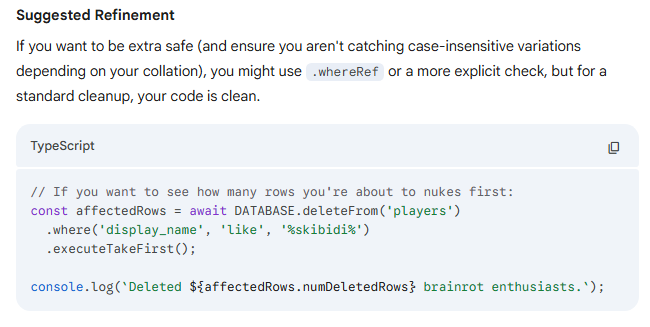
Take a look at this query that Gemini literally suggested to Prof. Juett while he was double checking one of the above examples… This would not allow you to “see how many rows you’re about to delete” - it just immediately deletes them and returns the count of deleted rows. Oops!
Type Safety with Selectable, Insertable, and Updateable
Kysely provides utility types that help you write type-safe database layer functions. These types come from Kysely and are applied to your generated schema types. The table below summarizes the main ones, and you can follow examples in the starter code for your project.
| Type | Purpose | Example Use |
|---|---|---|
Selectable<T> |
Represents a row as returned from a SELECT query | |
Insertable<T> |
Represents data for an INSERT (excludes auto-generated columns) | |
Updateable<T> |
Represents data for an UPDATE (all columns optional) | |
UpdateableByPK<T, K> |
We actually added this one. Like UPDATE, but doesn’t allow the primary key K to be optional |
Part 4: Implementing the Sudoku Puzzles Database Layer
Exercise 4.1: Create the Sudoku Puzzles Database Layer
Create a new file sudoku_puzzles.ts in the src folder based on the template below. Implement the two TODO functions to get puzzles by difficulty and insert new puzzles.
import { Insertable, sql } from 'kysely';
import { DATABASE } from './database';
import { DB as Schema } from './schema';

/**
 * Get a puzzle by its ID.
 */
export async function getPuzzleById(puzzle_id: number) {
  return DATABASE.selectFrom('sudoku_puzzles')
    .selectAll()
    .where('puzzle_id', '=', puzzle_id)
    .executeTakeFirst();
}

/**
 * Get all puzzles of a specific difficulty.
 */
export async function getPuzzlesByDifficulty(difficulty: number) {
  // TODO: implement me!
}

/**
 * Get a random puzzle.
 */
export async function getRandomPuzzle() {
  let query = DATABASE.selectFrom('sudoku_puzzles').selectAll();

  // SQLite's RANDOM() function for random ordering
  return query.orderBy(sql`RANDOM()`).executeTakeFirst();
}

/**
 * Insert a new puzzle into the database.
 */
export async function insertPuzzle(puzzle: Insertable<Schema['sudoku_puzzles']>) {
  // TODO: implement me!
}
Important! Each of these functions is declared as async, and in all of the functions above, we return the result of executing the query. What’s going on here? Executing the query is a non-blocking, asynchronous operation that returns a Promise. We immediately return that promise, which represents the asynchronous result of the query. The caller can then await the promise to get the actual result when it’s ready. This is important even if it’s something like an INSERT operation that doesn’t return any data - the caller might still want to await it and only move on once the insert has finished.
Once you’ve finished filling in implementations, don’t forget to export these functions from your package! Add an export for sudoku_puzzles in the package.json in the database package. Make sure to get the right package.json file - there are several, and you don’t want this in the top-level one.
{
  "exports": {
    "./players": "./src/players.ts",
    "./sudoku_puzzles": "./src/sudoku_puzzles.ts"
  }
}
Exercise 4.2: Load Puzzles Using a Seed File
Now let’s load the puzzles from sudoku_puzzles.txt into the database. If you don’t have that file in your project 2 repository, copy it from the project 1 distribution or from this lab 4 repository.
Kysely supports seeds, which are scripts that populate your database with initial data. While migrations are for the database’s schema (i.e. the “shape” of the data), seeds are for the actual data itself. Seeds are also critically different in that they’re always dependent on the current schema, whereas migrations evolve the schema itself. This means that you might need to update seeds if the schema changes. For example, if we added some new metadata to each sudoku puzzle, that would involve a database migration to create a new column for it, and we would need to update our seeds to include data for that column.
Step 1: First, enable seeds in kysely.config.ts by uncommenting and updating the seeds configuration. IMPORTANT - also make sure to adjust the seeds directory to src/seeds, not just seeds:
import { SqliteDialect } from 'kysely'
import { defineConfig } from 'kysely-ctl'
import SQLite from 'better-sqlite3'

export default defineConfig({
  dialect: new SqliteDialect({
    database: new SQLite('database.sqlite'),
  }),
  migrations: {
    migrationFolder: "src/migrations",
  },
  // seeds: { // Uncomment this!
  //   seedFolder: "src/seeds", // make sure this says src/seeds
  // }
})
Step 2: Within the packages/database/src folder, create a nested seeds folder. Copy the sudoku_puzzles.txt file into the seeds folder, and alongside it, create a new file 001_sudoku_puzzles.ts:
import { Kysely } from 'kysely';
import { readFileSync } from 'node:fs';
import { join, dirname } from 'node:path';
import { fileURLToPath } from 'node:url';

import { DB as Schema } from '../schema'; // types generated from kysely-codegen


const __dirname = dirname(fileURLToPath(import.meta.url));

export async function seed(db: Kysely<Schema>): Promise<void> {
  // Read the puzzles file, presumed to be in the seeds directory
  const filePath = join(__dirname, 'sudoku_puzzles.txt');
  const content = readFileSync(filePath, 'utf-8');
  const lines = content.trim().split('\n');

  console.log(`Loading ${lines.length} puzzles...`);

  // Build all puzzle objects
  const puzzles = lines.map(line => {
    const [difficultyStr, starting_board, solution_board] = line.split(' ');

    if (!difficultyStr || !starting_board || !solution_board) {
      throw new Error(`Invalid puzzle line: ${line}`);
    }
    if (starting_board.length !== 81 || solution_board.length !== 81) {
      throw new Error(`Invalid board length in line: ${line}`);
    }

    return {
      difficulty: parseInt(difficultyStr, 10),
      starting_board,
      solution_board,
    };
  });

  // Insert in batches for better performance (not really needed
  // on our relatively small dataset, but good practice)
  const BATCH_SIZE = 100;
  for (let i = 0; i < puzzles.length; i += BATCH_SIZE) {
    const batch = puzzles.slice(i, i + BATCH_SIZE);
    await db.insertInto('sudoku_puzzles')
      .values(batch)
      .execute();
  }

  console.log('Done loading puzzles!');
}
Step 3: Add a script to package.json in the database package (not the top level package.json):
{
  "scripts": {
    "db:migrate": "kysely migrate:latest",
    "db:generate": "kysely-codegen",
    "db:seed": "kysely seed:run"
  }
}
Step 4: Run the seed. From the top-level of your repository, run:
pnpm --filter database db:seed
Note: Unlike migrations, seeds don’t track whether they’ve been run before. Running db:seed again would insert duplicate puzzles. In a real application, you might add logic to check if data already exists, or clear the table first. For this lab, just run the seed once after running your migrations.
You should see output indicating the puzzles were loaded!
Exercise 4.3: Test Your Database Layer
Find the db-example.ts file in the apps/local-cli/src folder. This is a sample file that interacts with the database layer for players. Add a couple lines:
- At the top:
import { getPuzzlesByDifficulty } from "@repo/database/sudoku_puzzles"; - At the beginning of main:
console.log(getPuzzlesByDifficulty(0));
Now, run pnpm start:db-example.
Oops… we forgot to await the result, so we just see Promise { <pending> } (followed by the prompt from the rest of that example file).
Modify that to console.log(await getPuzzlesByDifficulty(0));. The await here says that we need to wait until the asynchronous result from the database has actually been retrieved.
Now run pnpm start:db-example again. You should see an array of easy puzzles printed to the console. Nice!
Feel free to take a look at the rest of the db-example.ts file. It shows an interactive loop that contains some of the same elements you’ll need for player account management in project 2.
Part 5: Serializing and Deserializing JSON Data
Sometimes you need to store complex, structured data in a database column. While some databases have native JSON column types, SQLite stores JSON as text. This means you need to manually serialize (convert to string with JSON.stringify()) when inserting and deserialize (parse with JSON.parse()) when selecting. You might also notice that the generated type for such a column is just string.
For example, suppose you chose to represent a saved game state using an interface and that you would like to store it in the database as serialized JSON:
interface SomeGameState {
  // ... your game state properties here
}
Then your migration would create a table like this:
await db.schema
  .createTable("saved_games")
  // ... other columns ...
  .addColumn("puzzle_data", "text", (col) => col.notNull()) // For SQLite, use "text" for JSON
  .execute();
When inserting a saved game, you would serialize the game state:
async function insertSavedGame(gameState: SomeGameState) {
  return DATABASE.insertInto('saved_games')
    .values({
      puzzle_data: JSON.stringify(gameState)
    })
    .execute();
}

async function getSavedGame(/* ... id of game ... */) {
  const row = await DATABASE.selectFrom('saved_games')
    .selectAll()
    // ... some where clause ...
    .executeTakeFirst();

  if (!row) {
    return undefined;
  }

  return JSON.parse(row.puzzle_data) as SomeGameState;
}
Also note that the JSON.parse() approach uses a type assertion (as SudokuBoard), which means TypeScript trusts you that the data matches the type. If someone manually edited the database with invalid JSON, or if your game changed and is no longer compatible with structure previously encoded as JSON, you might encounter issues. This is yet another place where validation and error handling could be added for robustness, but you don’t need to worry that here for now.